 Piano Coach
How to practise with Piano Coach
Five minutes to set up, then it's you and the music.
1Set up at the piano
Put your laptop or iPad on the music stand or beside it, close enough to hear the piano clearly. Piano Coach uses your device's microphone; your browser will ask first.
If you want the app to play along while you play, use headphones, because otherwise the microphone hears the app too. The metronome is fine through speakers: its clicks are ignored.
2Open a piece
Click the piece's name in the top bar (or press /). Pieces are in tabs: Favourites, Play for fun, Graded and My pieces; typing searches them all. Tap ☆ on a piece (or press S for the open one) to keep it in Favourites on this device. To add your own, choose Import a piece… in the ☰ menu and pick a MusicXML or MIDI file. MusicXML exported from MuseScore gives the most exact score.
Looking for a favourite song? MuseScore.com has piano arrangements of thousands of pieces. Open one and choose Download, then MusicXML (or MIDI), and import that file. Some downloads need a MuseScore account or subscription; please respect each arranger's terms.
3Learn mode
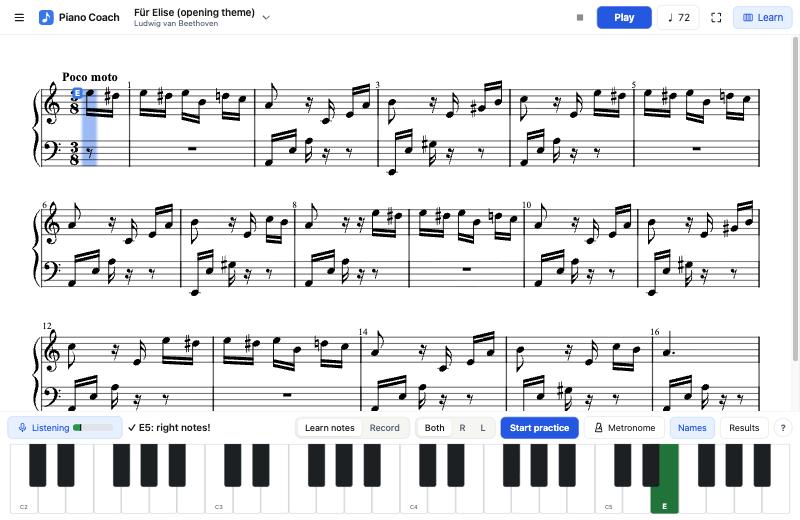
- Blue: the app is playing it
- Blue outline: play this one
- Green: heard
- Dark green: right note
Click Learn for the keyboard, then Listen to turn on the microphone. If a noisy room lights up keys you didn't play, open the ☰ menu and move Ignore sounds quieter than to the right until it stops.
4Practise
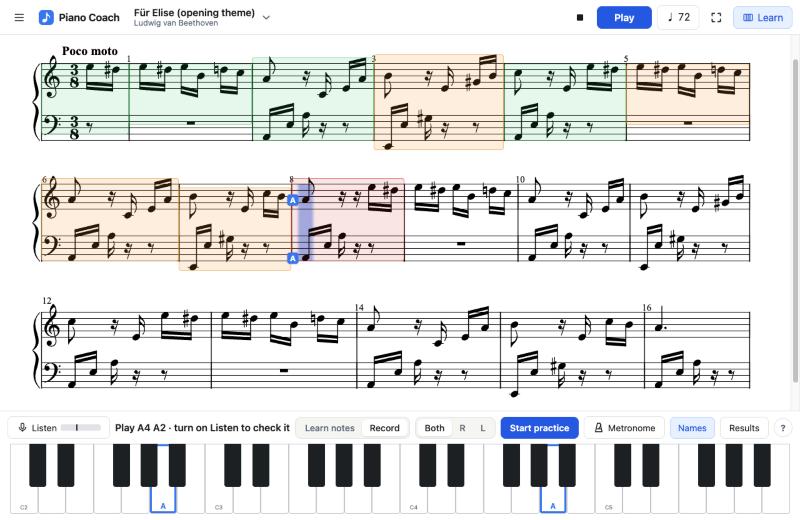
Choose how to practise, then press Start practice.
- Learn notes waits on each note or chord until you play it.
- Record lets you play straight through. Press Stop & review for a report: scores, coloured bars, the worst spots and the coach's advice.
Results shows your progress over time.
5Tips
| Space | Play or pause |
| / | Choose a piece |
| S | Star the open piece |
| L | Learn mode |
| F | Focus |
| Ctrl + B | Menu |
| → | Skip a note while practising |
Focus (F) hides everything but the music, which is easier to read from the piano stool. On an iPad, use Share → Add to Home Screen and it opens like an app.
6FAQ
Is the microphone private?
Only during Record & review, and the recording stays in the page so you can play it back. Listening happens inside your browser, and nothing is sent anywhere.
Where can I find pieces to practise?
MuseScore.com has piano arrangements of thousands of songs and pieces. Open one, choose Download, then MusicXML (an .mxl file) or MIDI, and import it into Piano Coach from the ☰ menu. MusicXML gives the most exact sheet music. Some downloads need a MuseScore account or subscription; please respect each arranger's terms.
Which browsers?
Use a current browser that allows the microphone; on an iPad, use Safari. The optional AI coach needs WebGPU: a recent Chrome or Edge on a computer.
Acoustic or digital?
Both. An acoustic piano works best. A digital piano works through its speakers.